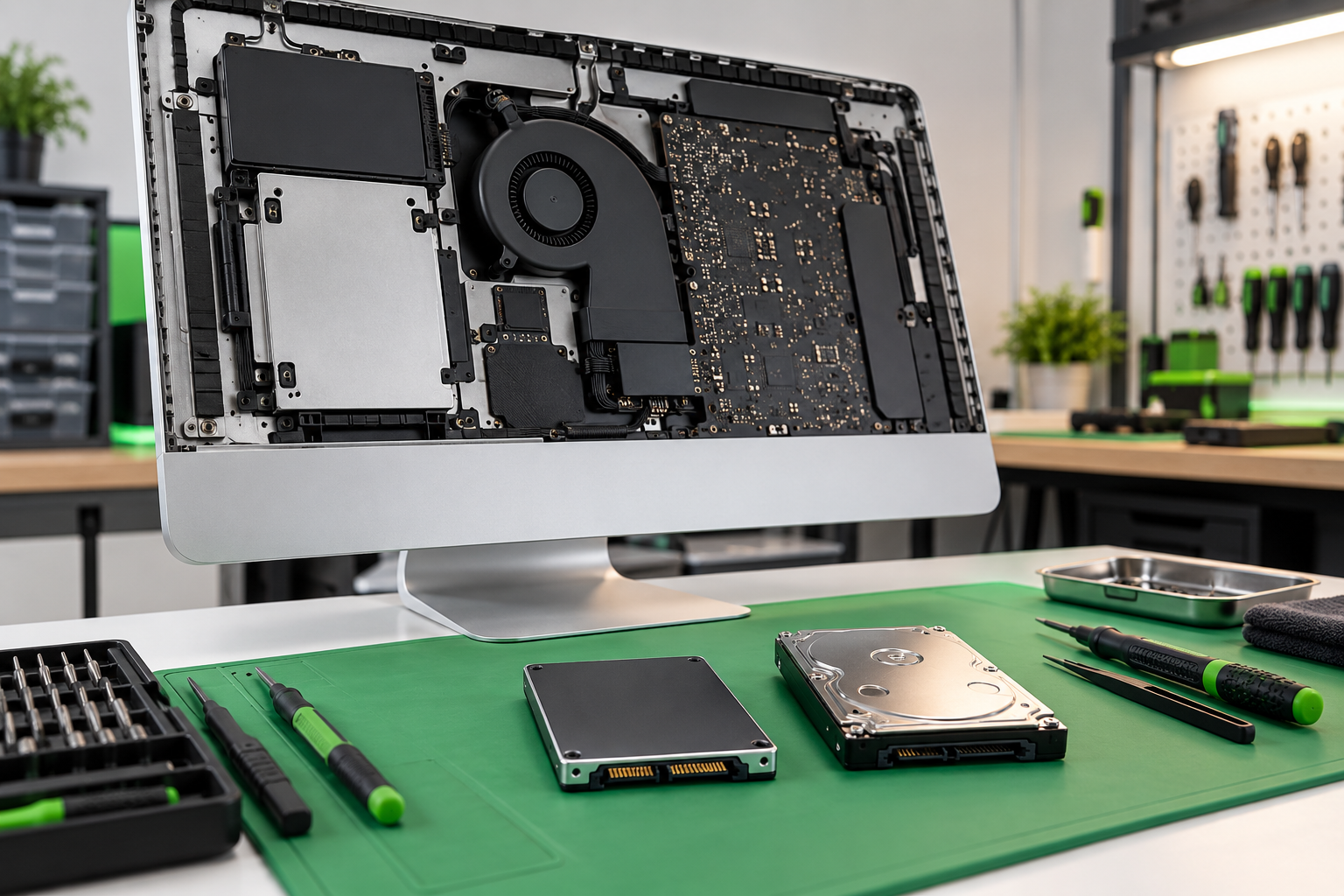
A slow iMac does not automatically need to be replaced. On many older models, storage performance—not the processor—is the main reason startup takes several minutes, applications bounce in the Dock, and simple tasks pause or freeze.
Why mechanical hard drives become a bottleneck
A traditional hard drive reads information from rotating platters using a moving mechanism. That design can become noticeably slower as the drive ages, fills up, develops weak areas, or handles thousands of small files required by modern macOS and applications.
An SSD has no moving parts and can reach scattered files much more quickly. This difference is especially noticeable during startup, login, application launches, updates, web browsing, and any task that uses virtual memory.
Signs your iMac may benefit from an SSD
- Startup and login take several minutes even after software cleanup.
- Applications open slowly or display a spinning wait cursor during ordinary tasks.
- Finder pauses while opening folders, previews, or search results.
- The internal drive makes unusual mechanical sounds or reports health warnings.
- Updates take a very long time and the entire computer feels unresponsive while files are copied.
- The processor and memory are adequate for your work, but storage activity remains the limiting factor.
What improves after a successful SSD upgrade?
Faster daily response
macOS, applications, documents, and browser data load with much less delay.
Quiet, cooler storage
An SSD has no spinning motor or moving read head, reducing drive noise and storage-related heat.
Better reliability
Replacing an aging hard drive removes a common mechanical failure point before it stops working completely.
Cloning versus a fresh macOS installation
Cloning or migration is convenient when the original drive is healthy. It can preserve user accounts, documents, many applications, and familiar settings, reducing the time needed to get back to work.
A fresh installation can be better when the existing system has accumulated software problems, obsolete extensions, malware, or years of clutter. Personal files can be moved afterward, while applications are installed cleanly.
If the old drive is failing, repeatedly cloning it may increase stress and waste valuable time. The safest approach may be to recover the most important data first and work from a controlled copy rather than continuing to use the original disk.
Do all iMacs use the same upgrade process?
No. iMac generations differ in display attachment, internal layout, temperature sensing, drive configuration, and supported storage interfaces. Some models use a mechanical drive, some use a combined Fusion Drive arrangement, and newer configurations may use different storage designs.
Opening an iMac requires the correct tools and replacement display adhesive. The screen must be handled carefully, internal cables must not be strained, and cooling and temperature behaviour should be checked after reassembly.
Choose the right SSD capacity
Check how much space is actually used before selecting a replacement. The new SSD needs room for macOS, applications, documents, photos, and future growth. Filling an SSD almost completely can reduce working space for updates and temporary files.
Customers with large photo, music, or video libraries may combine a practical internal SSD with a reliable external drive or network backup. Capacity should match how the iMac is used—not simply the size of the old drive.
Back up before the old drive fails
A slow drive can be an early warning. If your files are still accessible, create a current backup before running intensive tests or updates. Confirm that important documents and photos can be opened from the backup rather than trusting only the completion message.
Is upgrading better than buying a new Mac?
For many older iMacs, upgrading can be much more affordable than replacing the entire computer. Along with installing an SSD, AppleMac can upgrade compatible RAM and install the newest macOS version that is suitable for your iMac model. These improvements can make everyday work faster, extend the useful life of the computer, and help it run newer applications more smoothly.
Upgrade options depend on the exact iMac model, its hardware condition, and macOS compatibility. We assess the complete computer first and recommend the combination of storage, memory, and software improvements that provides dependable value.
iMac SSD upgrades in Edmonton
Find out whether your slow iMac is worth upgrading
AppleMac can test the drive, review the iMac’s overall condition, recommend suitable storage, and help transfer your data. Service is available by appointment.