
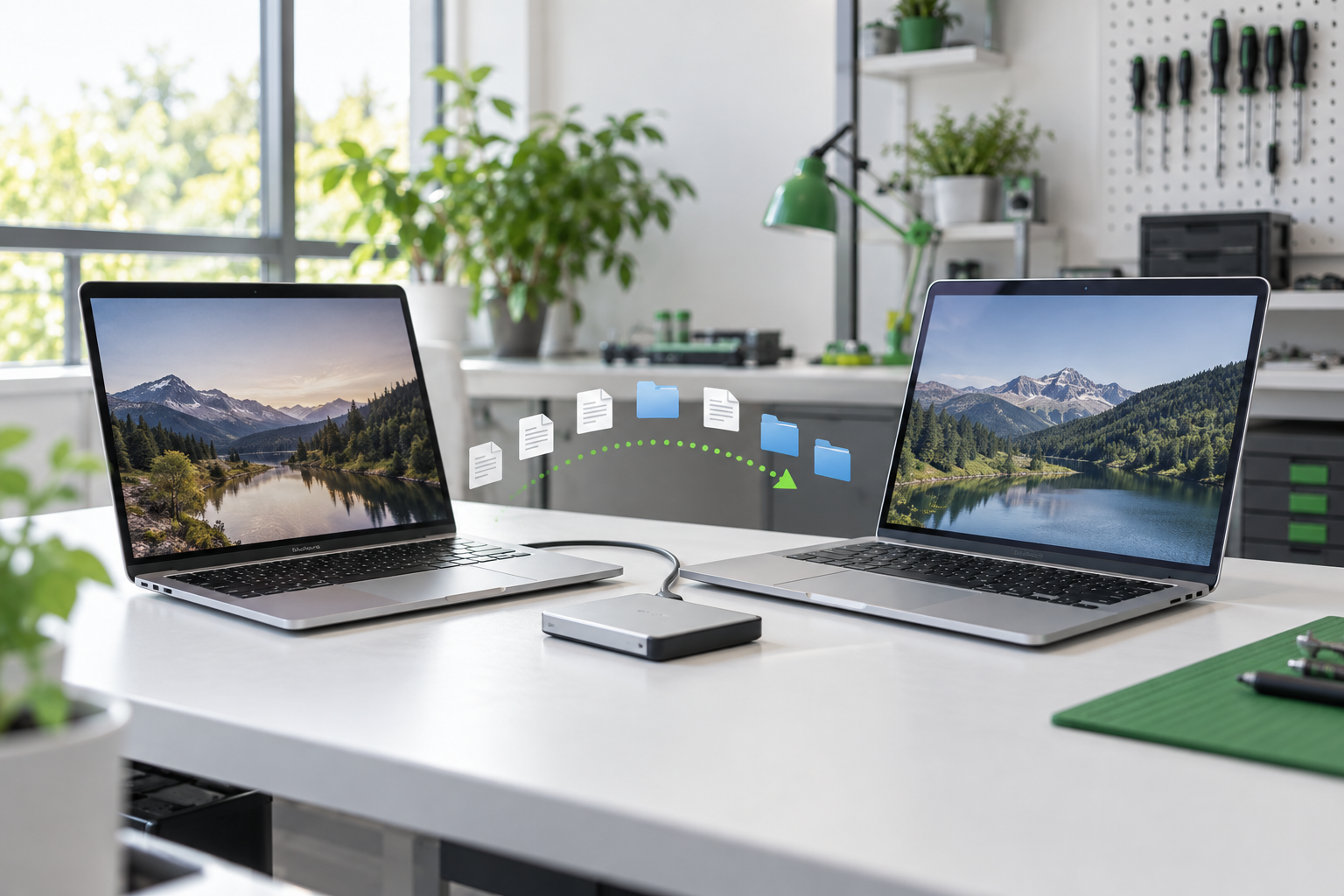
Moving to a new Mac can be simple when the old computer is healthy—but the safest approach changes when it freezes, has storage errors, suffered liquid damage, or no longer turns on. Before copying anything, choose a method that matches the condition of the source Mac and make sure there is at least one reliable backup.
Start by checking the old Mac
A normal transfer is reasonable if the old Mac starts consistently, stays powered on, recognizes its internal storage, and opens important files without errors. Connect both Macs to power and confirm that the new Mac has enough free storage for the information you plan to move.
If the source Mac shuts down unexpectedly, makes unusual noises, repeatedly freezes, shows a flashing folder, or cannot see its drive, avoid forcing a large transfer. Continued use can place additional stress on failing hardware.
Choose the right transfer method
Migration Assistant
Best for a healthy Mac when you want to bring across user accounts, documents, many applications, and system settings. A wired connection is usually faster and more dependable than Wi-Fi for a large transfer.
Time Machine backup
A strong choice when the two Macs will not be together or when you want a second copy before making changes. Let the backup finish, then confirm that you can browse it before relying on it.
Manual file copy
Useful when you want a clean start. Copy selected folders such as Desktop, Documents, Pictures, Movies, Music, and project archives instead of importing years of unused settings and software.
Prepare both computers
- Connect both Macs to their chargers and prevent them from sleeping during the transfer.
- Check how much data is stored on the old Mac and compare it with the free space on the new Mac.
- Have your Mac login, Apple Account, email, password-manager, and important application credentials available.
- Complete a fresh backup before upgrading macOS or making major changes to the old Mac.
- Use a known-good cable or external drive when possible.
What needs extra attention after migration?
Email: Cloud-based accounts normally download their messages again after you sign in. Locally stored mailboxes should be checked separately, including older folders, sent mail, and attachments.
Photos: Open the Photos library and confirm that older albums and original files are present. An iCloud library may need time to finish syncing.
Applications: Some programs require a new login or licence activation. Older software may not run on a newer version of macOS, so test the programs you depend on before retiring the old Mac.
Passwords and browser data: Confirm that saved passwords, bookmarks, extensions, Notes, Contacts, and Calendars are available—not just the files in Documents.
Verify the new Mac before erasing the old one
A completed progress bar does not prove that every important item arrived. Open a selection of recent and older documents, search for files you recognize, check your photo library and email folders, and launch essential applications. For business data, compare folder sizes or file counts where practical.
When you should stop and ask for help
If a Mac has liquid damage, cannot start, loses connection to its storage, or crashes during copying, a standard migration may not be safe. Modern Mac storage can be soldered to the logic board and protected by hardware encryption. Repairing the fault long enough to create a controlled backup may be safer than repeated startup attempts.
Avoid erasing the disk, reinstalling macOS, or running aggressive repair utilities when the only copy of important data is still on the computer.
Need help in Edmonton?
Let AppleMac handle the transfer carefully
We can assess the condition of your Mac, help protect your files, and move your data to a replacement computer. Service is available by appointment.